
The way to get started using the Recast MCP will depend on your specific LLM setup. The MCP server is hosted at https://mcp.getrecast.com/mcp.
For more details about what the Recast MCP does, see here.
The Recast MCP passes spend and performance data to the LLM provider you authorize. Once the data is passed, data privacy is governed by the provider's Terms of Service, not Recast’s.
The list on the right-hand sidebar contains the most common AI tools. If you don’t see your tool in the list, please see the bottom section “I use a tool not listed here.”
If you use Anthropic’s tools, the setup steps describe how to install the Claude plugin, which is a combination of the MCP and skill files that help Claude write code against our APIs. If you don’t use Claude, you can download the same skills from our API docs for the Forecaster, Optimizer, Plans and Reporter.
ChatGPT Web UI
-
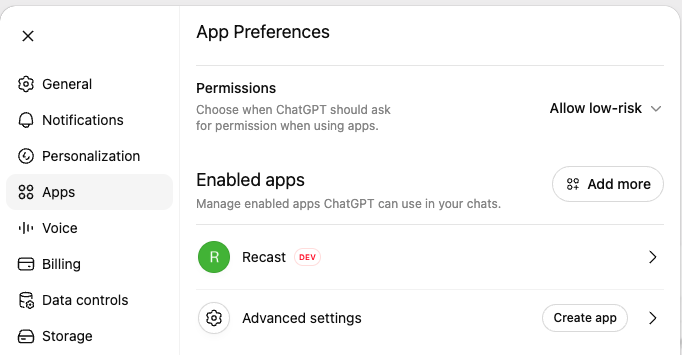
Click Settings Gear
-
Click Apps
-
Click Advanced Settings
-
Enable Developer Mode

-
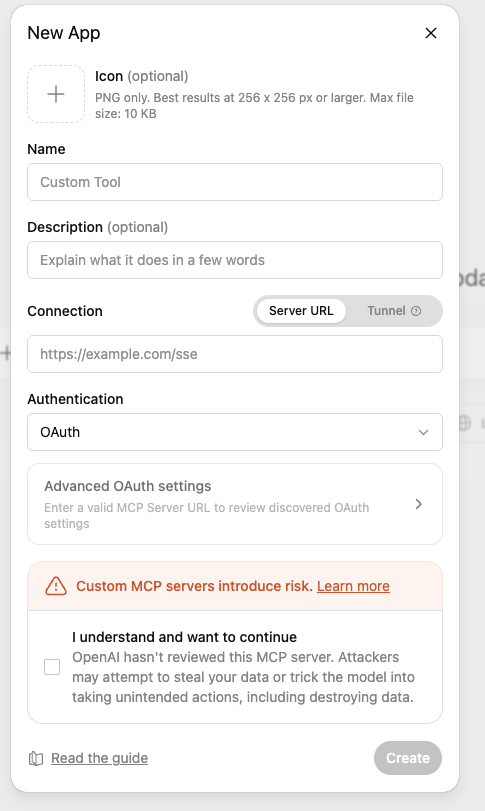
Click “Create App”
-
Name it “Recast”
-
For connection add
https://mcp.getrecast.com/mcp -
Leave Authentication on Oauth
-
Check the warning box about additional risk
-
Sign in with Recast
Note: If you are on an Enterprise Plan, you may need to ask your organization admin to enable Developer Mode
ChatGPT Desktop App
We recommend installing the Recast plugin for use with ChatGPT. This includes access to the MCP and the skill files for using the API. To do this, click “Plugins” on your left-sidebar. Then click the “Create” dropdown → Add Marketplace.

Then for the URL, use getrecast/recast-for-claude (apologies for the misnomer – “recast-for-claude” is for all AI systems that support plugins, not just Claude).
You can leave “git ref” blank (or type “main”) and then click “Add Marketplace.”
Once the marketplace is added, click “Personal” and you should see an install button for the Recast plugin. Click this and you will be sent through an Oauth authentication flow. Once complete you are ready to use Recast MCP and skill files.
Some enterprises may limit MCP and plugin installation to those with Admin access. If you do not have the option of adding the plugin, contact your ChatGPT Administrator.
Codex CLI
Installing the Plugin (preferred)
We recommend installing the Recast plugin for use with ChatGPT. This includes access to the MCP and the skill files for using the API.
Start a codex session (codex in the terminal).
Type /plugins
Arrow over to “Add Marketplace” (last item in the list).
Enter https://github.com/getrecast/recast-for-claude
You should now have a “recast” entry when you look at /plugins, tab over to it and hit “Install” on the Recast plugin:

You should then be sent through the Oauth flow to sign in.
Installing the MCP
If you don’t want the full plugin (including the skill files for API usage), you can instead only install the MCP.
In your terminal, run:
codex mcp add recast --url <https://mcp.getrecast.com/mcp>
And then:
codex mcp login recast
This should kick off the Oauth authentication flow.
Older versions of Codex do not support adding MCPs this way
Claude Web UI, Free Version
The free version of Claude only allows 1 custom connector
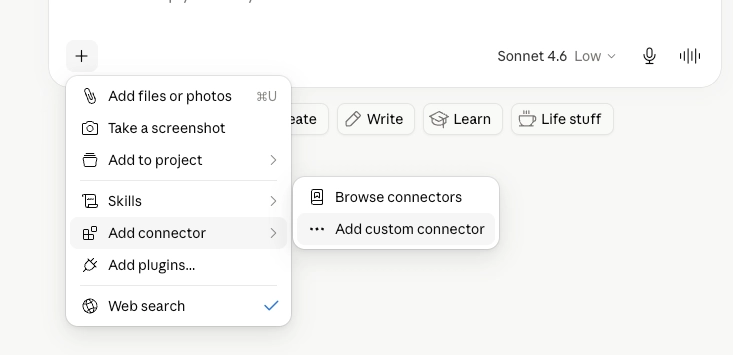
Click the + below the chat, and click “Add Custom Connector”
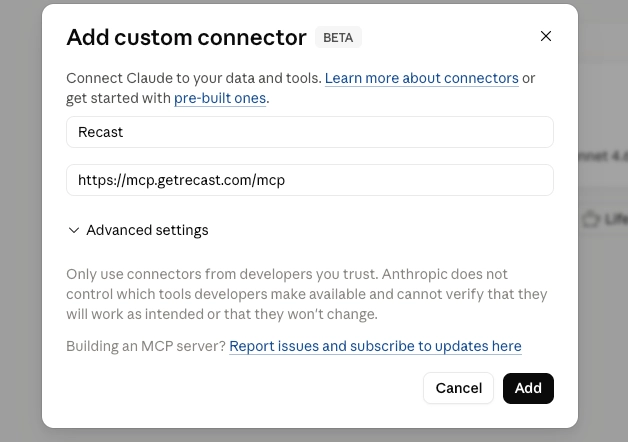
Name it Recast and provide the URL https://mcp.getrecast.com/mcp
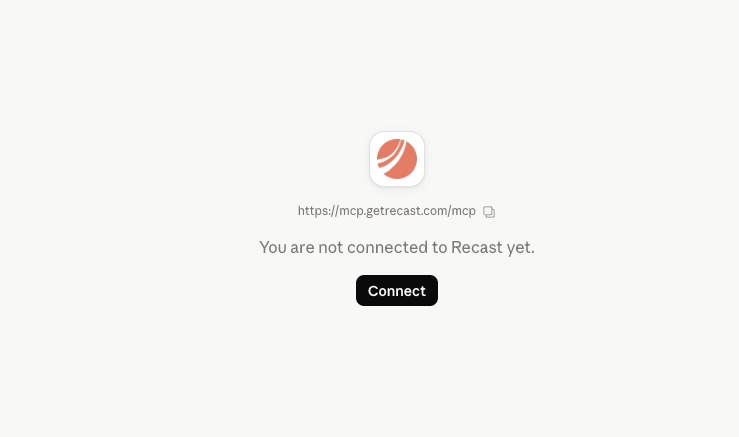
On the left-hand toolbar, click “Customize”→Connectors→Recast
Then Connect (will be asked to sign in)
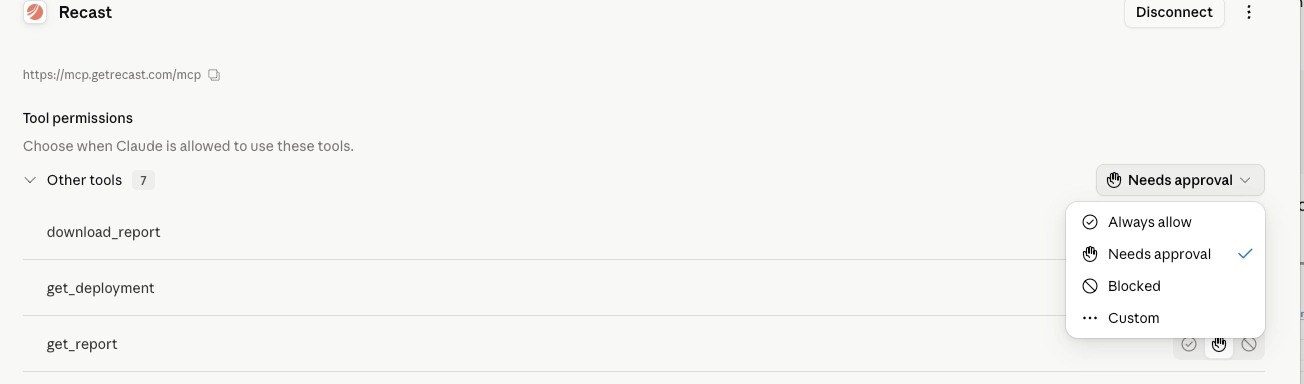
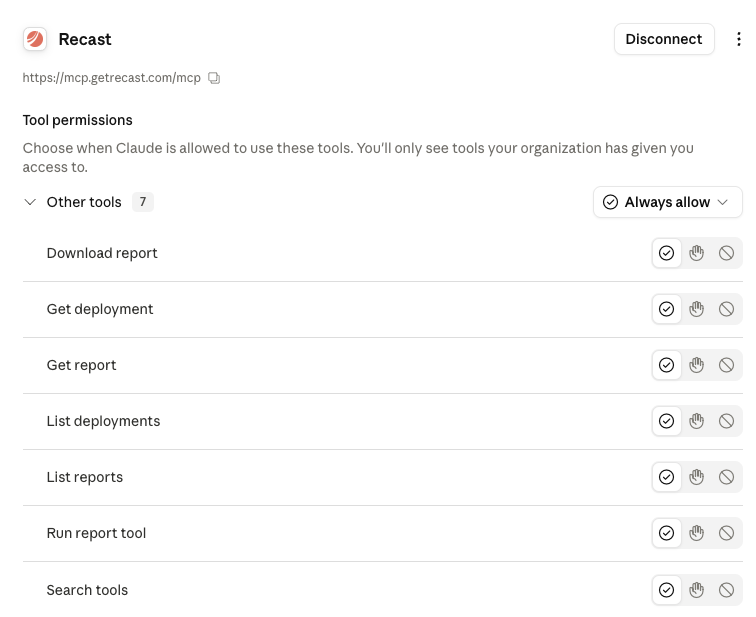
Once signed in, “Always allow” all tools:
Gemini Web UI
The Gemini web UI does not support MCP servers at this time
Gemini CLI
Gemini CLI is being deprecated, but until then you can do
gemini mcp add --transport http recast https://mcp.getrecast.com/mcp
Antigravity CLI
Google does not seem to properly support MCPs in Antigravity. There may be workarounds, so if this is blocking you please reach out at support@getrecast.com
Claude Code CLI
To install the plugin (MCP and skill files for the API):
-
Start a
claudesession -
Run
/plugins -
Tab over to “Marketplaces” and select “Add Marketplace”

-
Type in
getrecast/recast-for-claude
When you attempt to use the MCP you will be prompted to go through the authorization flow and sign in to Recast.
To sync updates to the skill files available in the Recast for Claude plugin (Recommended):
-
Start a
claudesession -
Run
/plugins -
Tab over to “Marketplaces” and select your installed Recast plugin
-
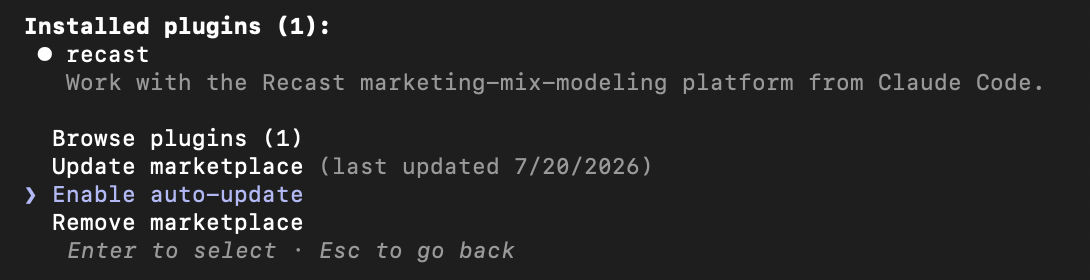
Select “Enable auto-update”
-
Updates will be applied once you restart your claude session and send a new message.
Auto-updates ensure that you are always using the latest version of the skill files published by Recast without needing to make manual updates.
Claude Desktop
We recommend installing the Recast plugin for use with Claude. This includes access to the MCP and the skill files for using the API. To do this, click “Customize” on your left-sidebar. Then click Plugins → Add → Add Marketplace
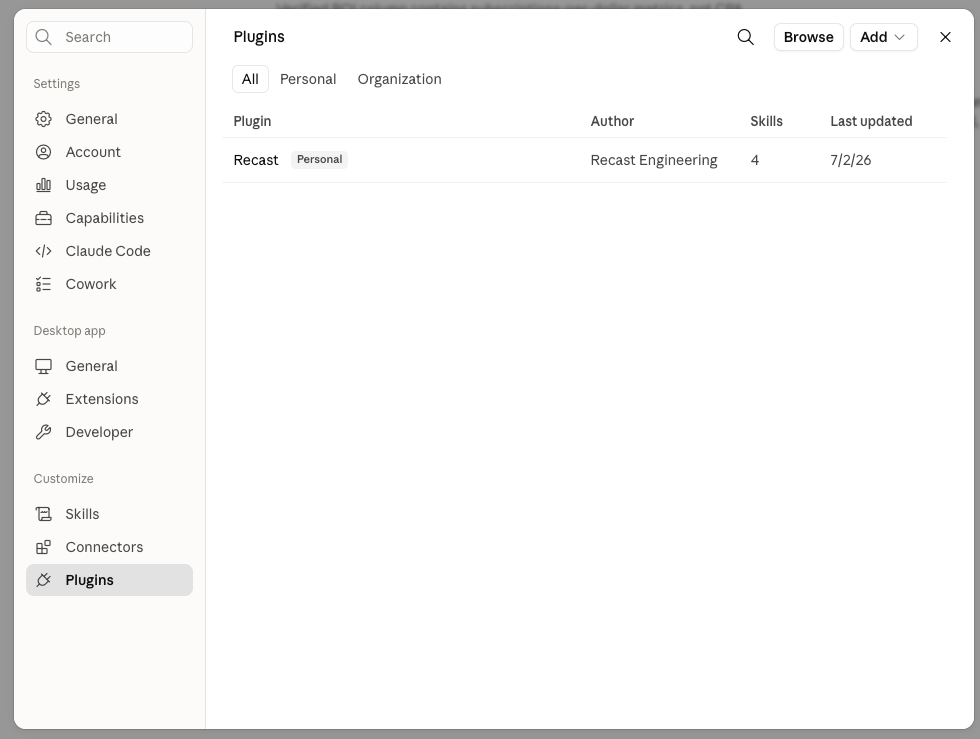
Then for the URL, use getrecast/recast-for-claude
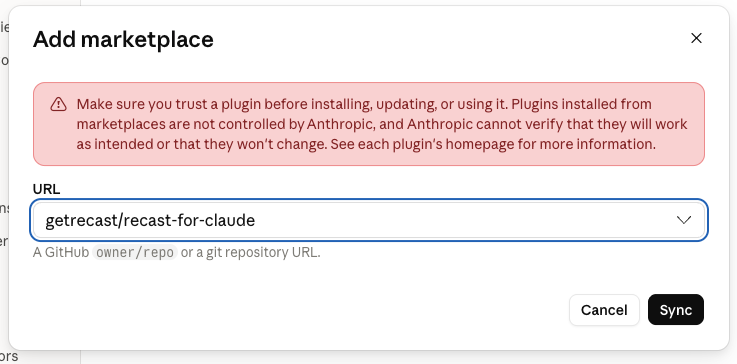
Click Sync.
If it loads the Recast connector, but there is a grayed out “Install” button next to it, you may need to talk to your Claude Admin. It is likely a company admin setting that is preventing the installation of the MCP.
If your company doesn’t allow users to install connectors The plugin will still include the skill files, but will not give you access to the MCP. An IT admin will need to install the connector on your behalf. The URL they will need to install the connector is https://mcp.getrecast.com/mcp. Once installed in your organization, you should be able to turn it on in your “Connectors” tab.
Once connected, you should be able to authorize the MCP using your Recast credentials. You may want to adjust these tool permissions to “Always Allow” to reduce the number of times you’re asked to approve tool calls:
To automatically sync updates to your Claude Desktop plugin (Recommended) :
-
Click “Customize” in your left side bar
-
Click “Plugins”
-
Click “Browse” in the top right hand corner
-
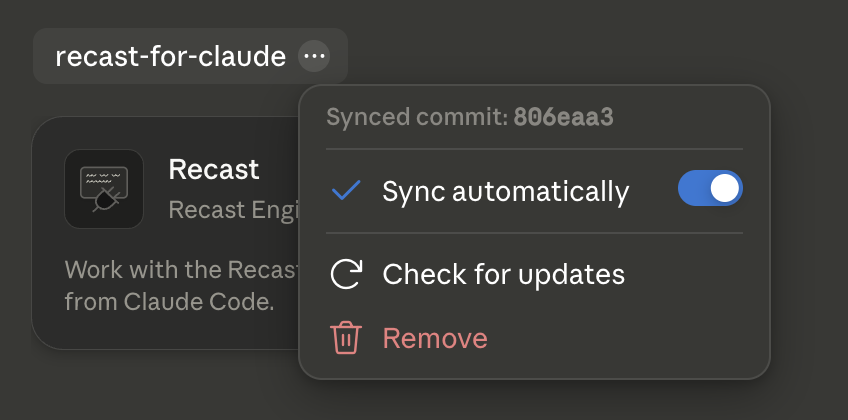
Find the Recast plugin and click the three dots next to the Plugin name on the tab
-
Click “Sync automatically” to make sure you are always using the latest version of the skill files that Recast publishes without any manual updates.
Snowflake Cortex
Snowflake’s official MCP setup instructions can be found here.
When configuring the MCP, use this:
CREATE OR REPLACE API INTEGRATION recast_mcp_api_integration
    API_PROVIDER = external_mcp
    API_ALLOWED_PREFIXES = ('https://mcp.getrecast.com')
    API_USER_AUTHENTICATION = (
      TYPE = OAUTH_DYNAMIC_CLIENT,
      OAUTH_RESOURCE_URL = 'https://mcp.getrecast.com/mcp'
    )
    ENABLED = TRUE;
I use a tool not listed here
In general, your tool is compatible with the Recast MCP if it meets two criteria:
-
Supports connecting to MCPs
-
Supports Oauth authentication for authenticating requests to those MCPs
Your tool will usually have a MCP/Connector section that allows you to configure the MCPs you use. In this tool, you should have the opportunity to add a new MCP via URL. The URL you want to use is https://mcp.getrecast.com/mcp. If you see MCP settings, but don’t see a way to add a new MCP, there may be administrative restrictions on who in your organization can install MCPs. If that is the case, contact your Admin to request permission to add the MCP.
If you believe your tool meets both of these criteria and you still are having difficulty adding it, please email support@getrecast.com with the name of your AI tool, any steps you took to install it, and any relevant error messages.